
Adding user & custom roles
How to add a user to Campaignswell
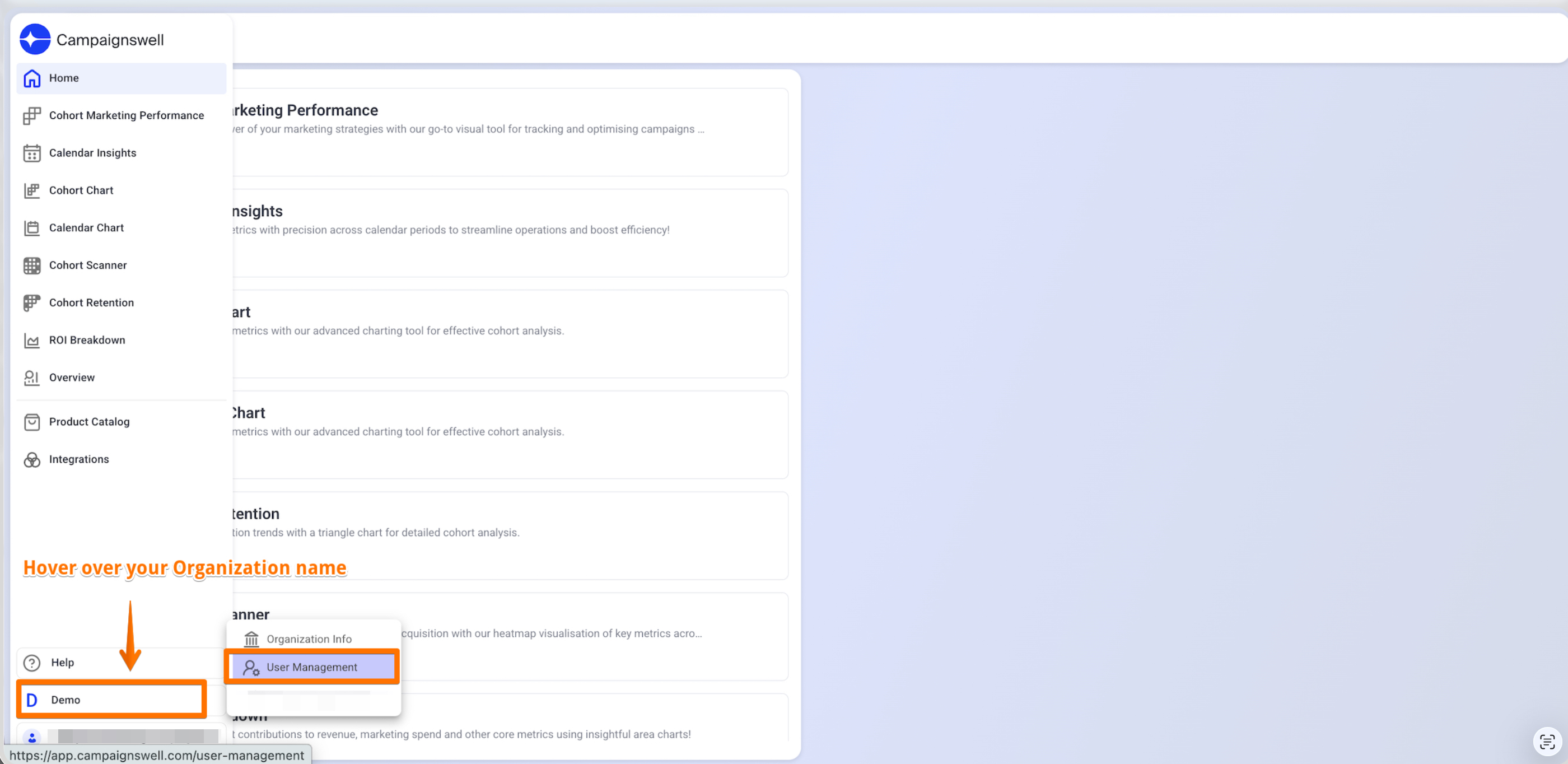
Step 1. Open User Management
Hover over your organization name and select "User management"
Step 2. Initiate User Addition
Click the "+ Add Users" button in the top right corner

Step 3. Send User Invitation
Enter the user's email and click "Send Invite"
Note: To grant admin access, select "Admin" from the Role dropdown.


Providing Restricted Access to Users
By default, new users get the standard User role. If a team member should only see part of your data, give them a custom role.
Access is managed through roles. You don't set dimensions, metrics or views for each person. You create a role once, choose what it can see, and assign it to as many users as you need.
Step 1. Create a role
1. Open User Management and go to the Roles tab.
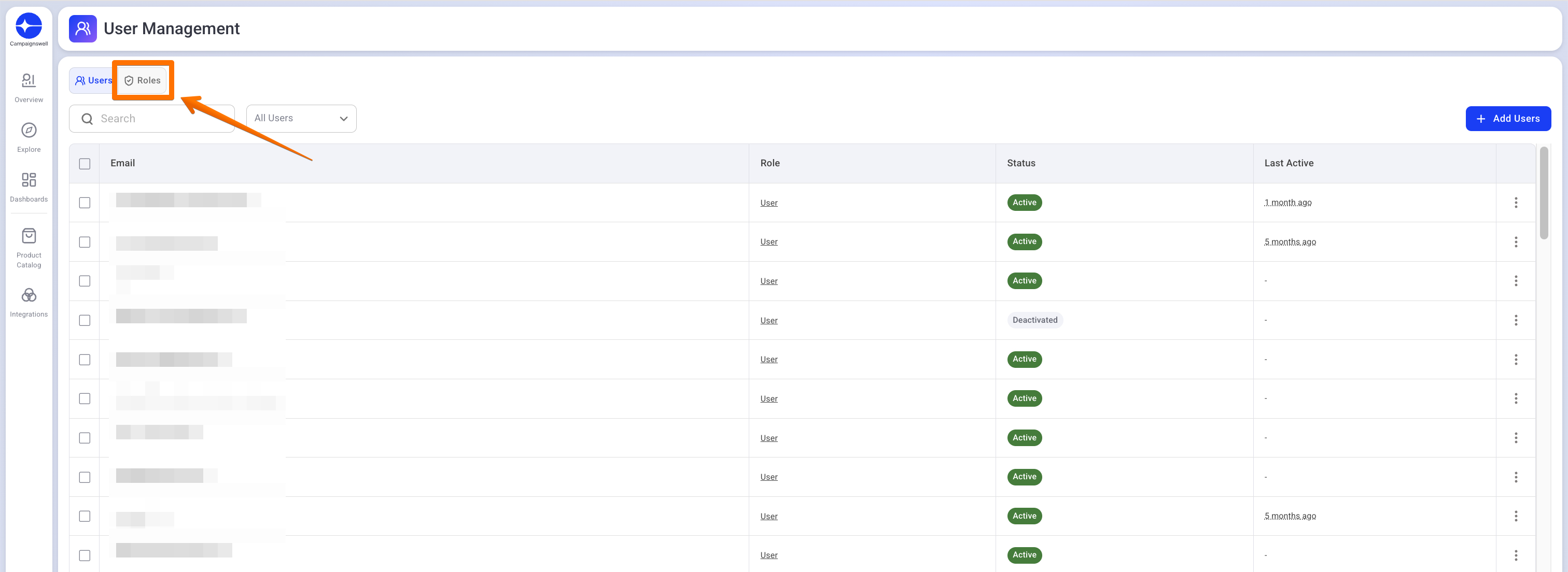
2. Click Add Role, or open an existing custom role and click Edit.
3. Set what this role has access to:
- Dimensions: which data sources are available (for example, only Google Ads).
- Metrics: which metrics are available.
- Views: which reports and charts are available.
- Capabilities: which features are available (for example, User Management or MCP access).
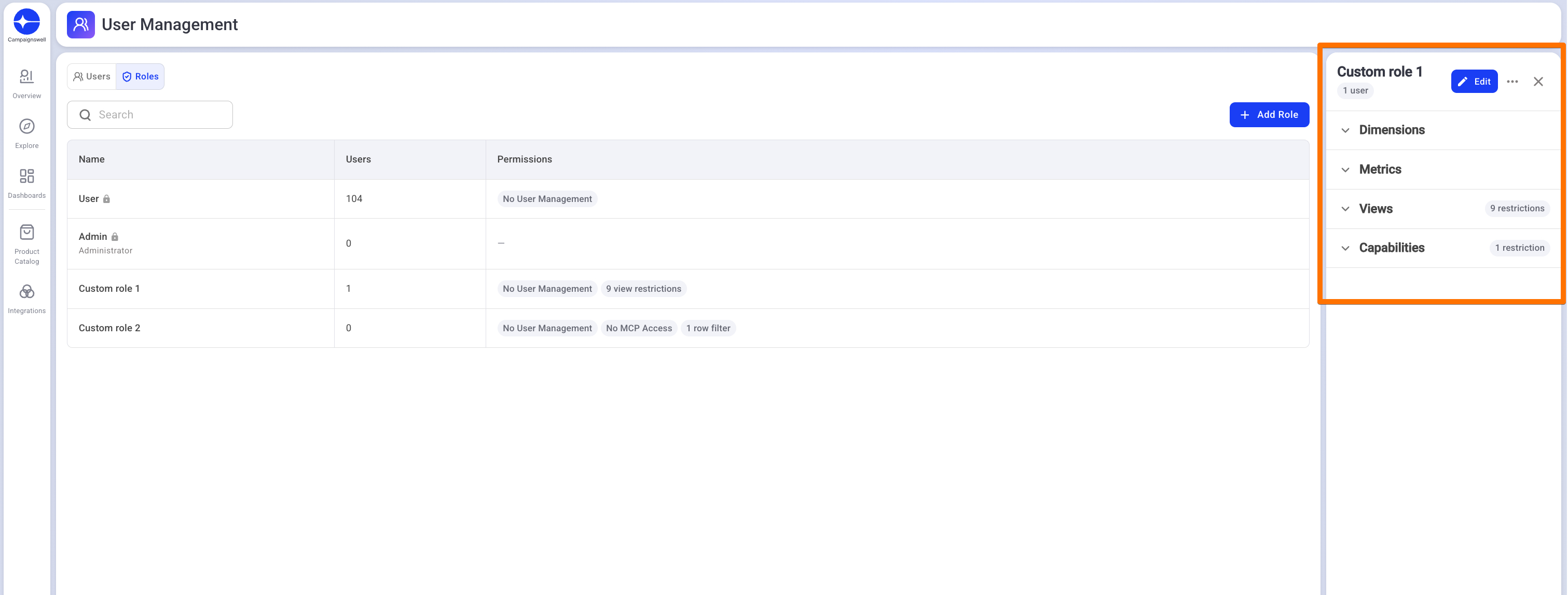
4. Save the role.
Step 2. Assign the role to a user
1. Go back to the Users tab.
2. Click the three dots at the end of the user's row.
3. Click Change Role.
4. Select your custom role and confirm.
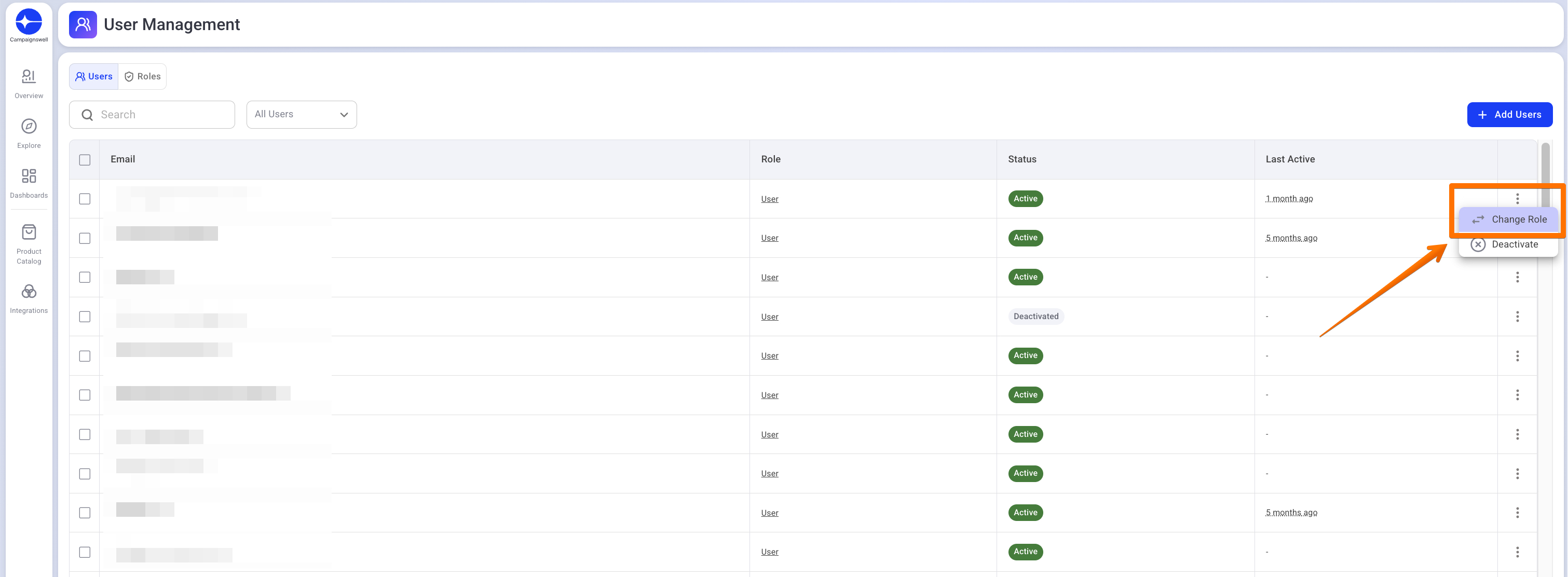
The user gets access based on that role. To change their access later, assign a different role in the same way.
Tip: if several people need the same data, give them the same role. When you edit the role, everyone with it is updated too. On the Roles tab you can see how many users each role has.
Access level also changes the data a user sees, so if different users see different numbers, it is most likely because of their custom roles.
Need help setting up a role? Write to us, we're happy to help.