
How to Integrate Campaignswell with Amplitude
Create a New Sync
Step 1. Open Amplitude Data
- Go to Amplitude Data > click Catalog
- Select the Destinations tab
Step 2. Choose Webhook
- Under the Event Streaming section, click Webhook

Step 3. Create Sync
- Enter any name for the sync (e.g.,
Campaignswell Sync) - Click Create Sync
Configure the Webhook
Step 4. Set Status
Choose Status: Enabled
Step 5. Add Webhook URL
Paste the Campaignswell-provided endpoint URL from Campaignswell UI
Step 6. Select Events
In Select & Filter Events, add the following events:
all Amplitude eventscw_subscribe(subscription start)cw_nrc_purchase(one-time/non-recurring purchase)
⚠️ If you use a funnel builder (FunnelFox, Web2Wave, etc.):The funnel builder sends its own events - they do not include cw_subscribe or cw_nrc_purchase. In this case, also add all relevant events from the funnel builder (e.g., ff_subscribe, ff_purchase, purchase_completed_success or however they're named in that tool). Specify which events correspond to subscription start and purchase in your funnel builder setup to your CSM.
Step 7. Enable User Data
Set Send Users: Disabled
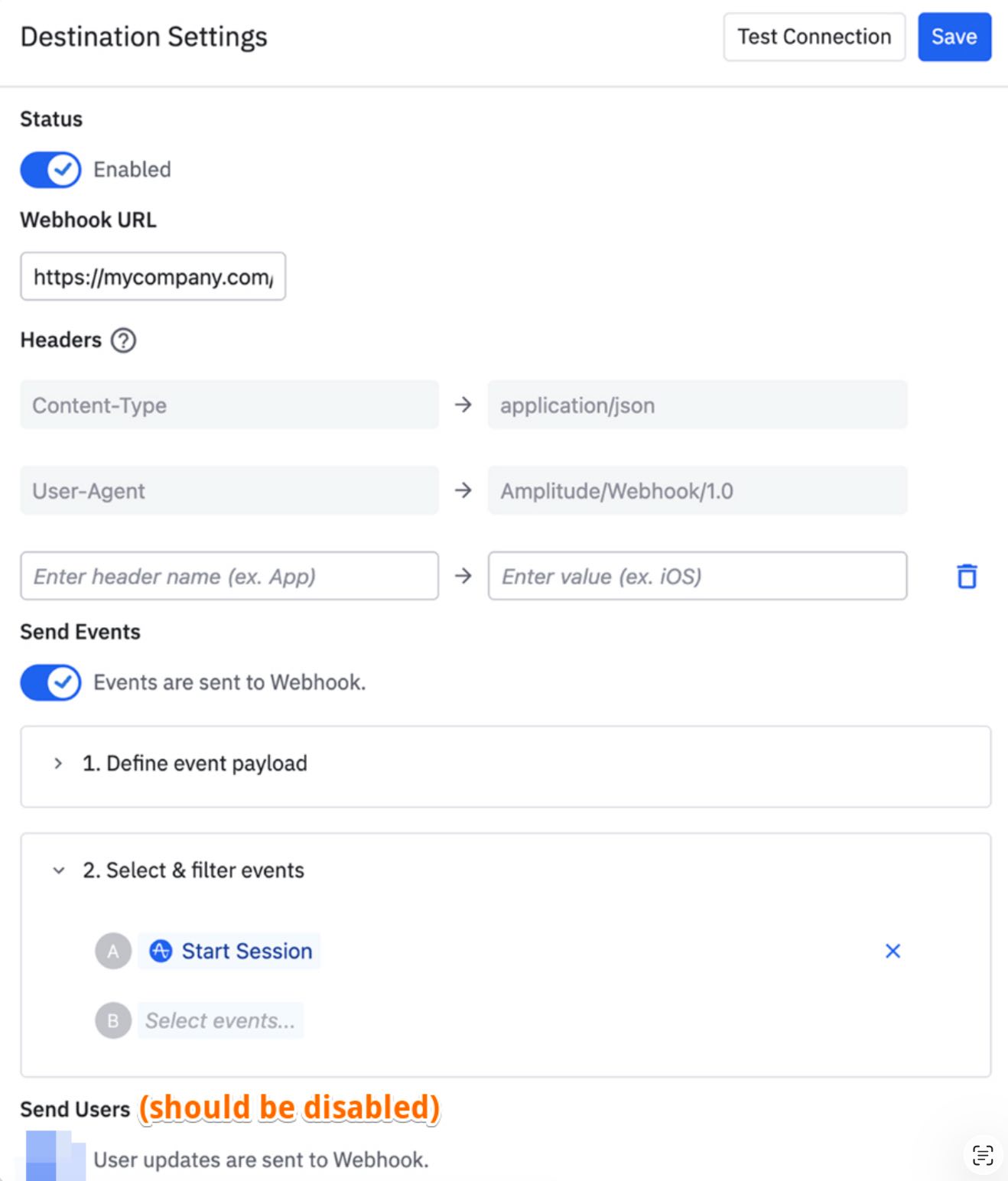
Step 8. Save
Click Save to activate the webhook
Configure SDK Settings (Required for Web Attribution)
Step 9. Enable Page URL Enrichment & Attribution
To track web attribution properly, you need to enable attribution, pageUrlEnrichment, and sessions in your Amplitude Browser SDK configuration.
Add this to your Amplitude SDK initialization code:
amplitude.init(API_KEY, {
  autocapture: {
    attribution: true,        // ✅ Required for UTM tracking
    pageUrlEnrichment: true,  // ✅ Required for referrer & URL tracking
    sessions: true,           // ✅ Required for session_start events
  },
});
⚠️ The above is the minimum required for attribution. If you don't explicitly configure other autocapture options, Amplitude will automatically enable them (clicks, page views, form interactions, etc.) - this can quickly consume your plan's event limits. We recommend disabling any events you don't need.