
How to add a user to Campaignswell
Step 1. Open User Management
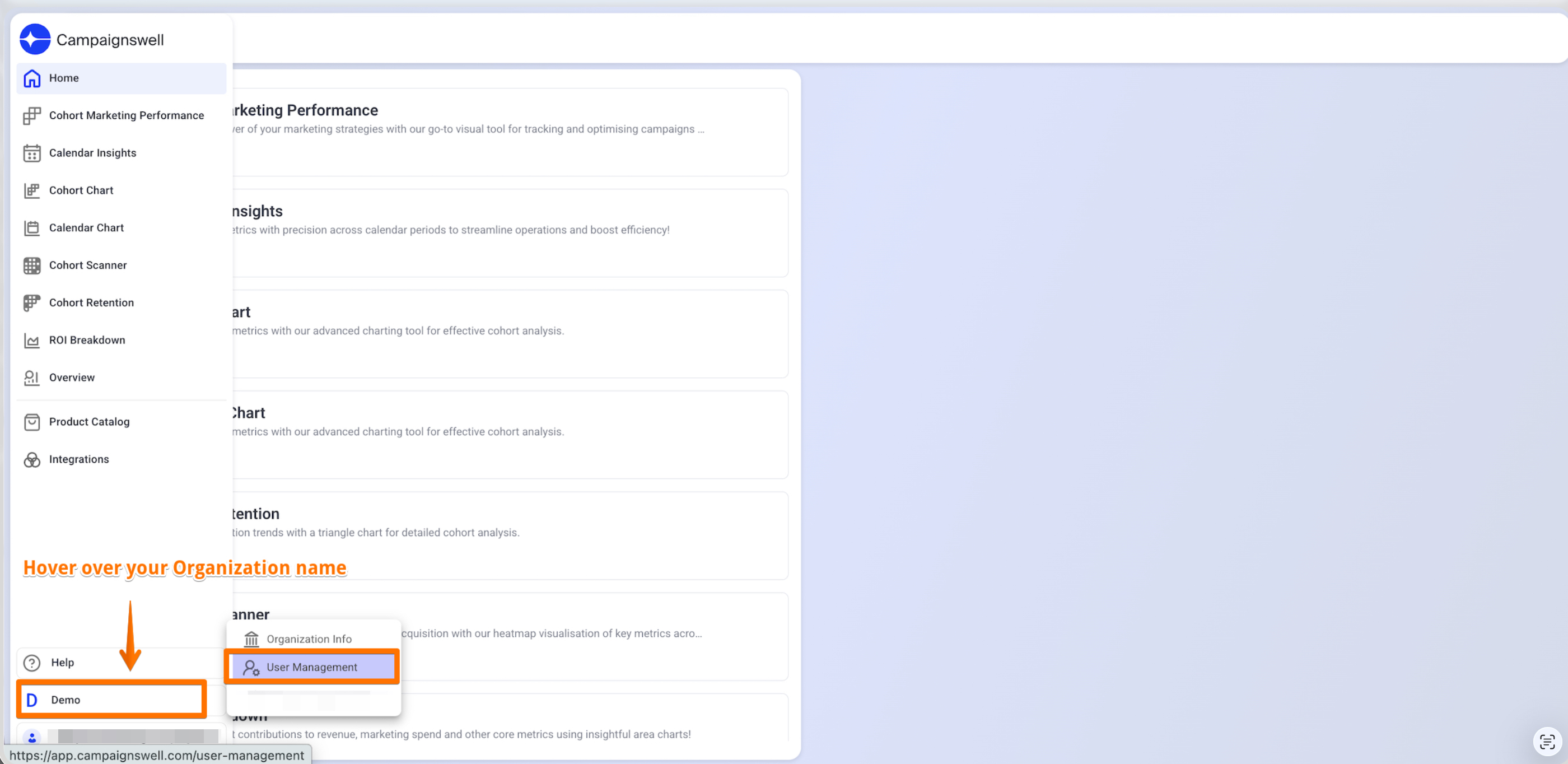
Hover over your organization name and select "User management"
Step 2. Initiate User Addition
Click the "+ Add Users" button in the top right corner

Step 3. Send User Invitation
Enter the user's email and click "Send Invite"
Note: To grant admin access, select "Admin" from the Role dropdown.


Providing Restricted Access to Users
After adding a user, you can limit their access to specific data and reports:
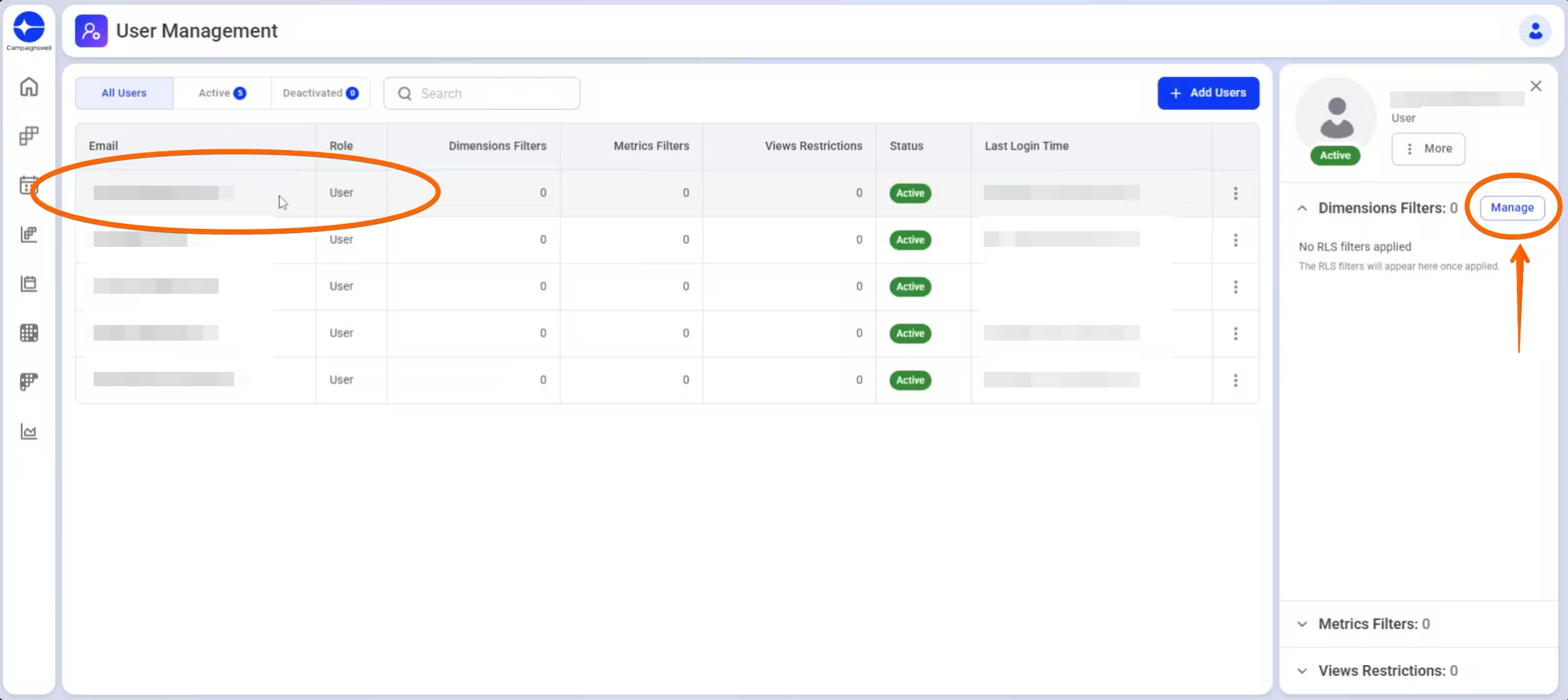
1. Click on the user's email in the user list
2. Click "Manage" under Dimensions Filters to select which data sources they can view (e.g., only Google Ads)
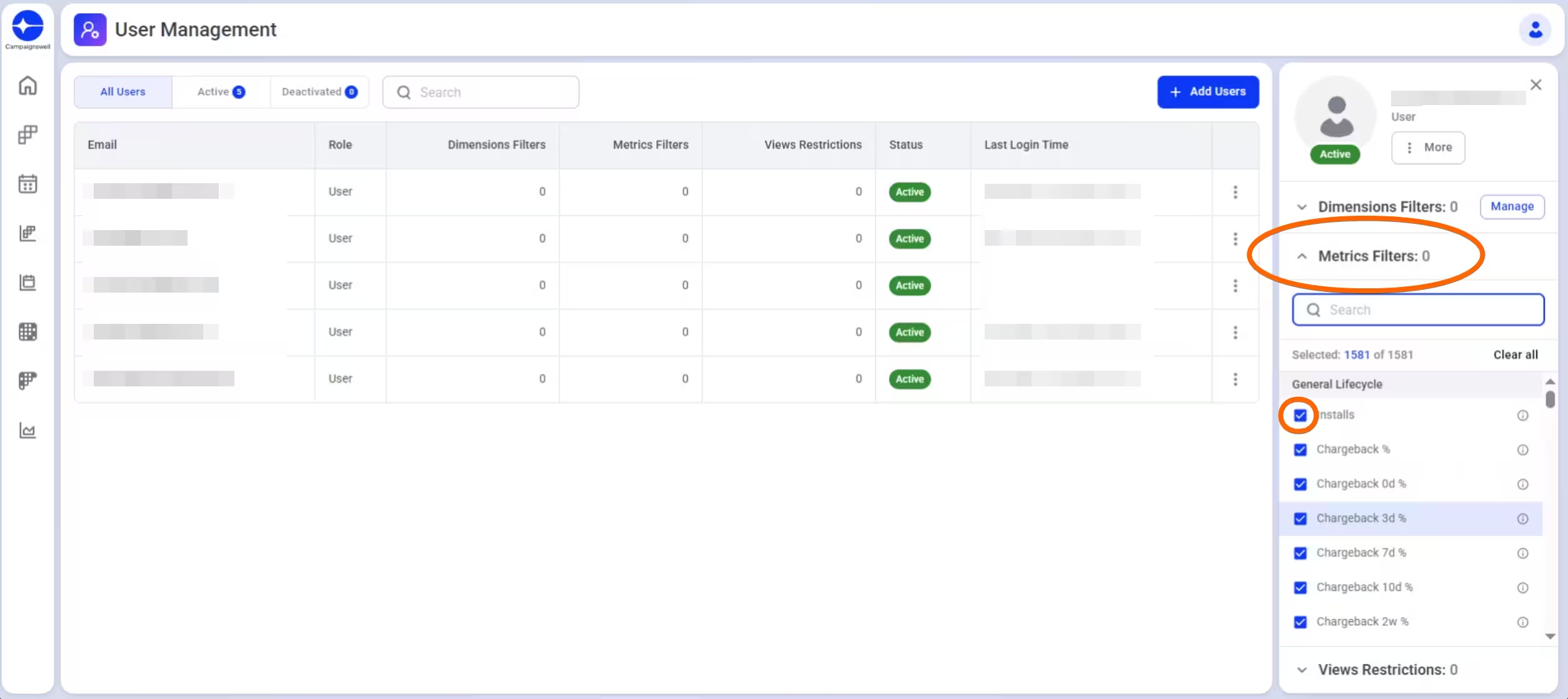
3. Click on Metrics Filters to choose which metrics they can access
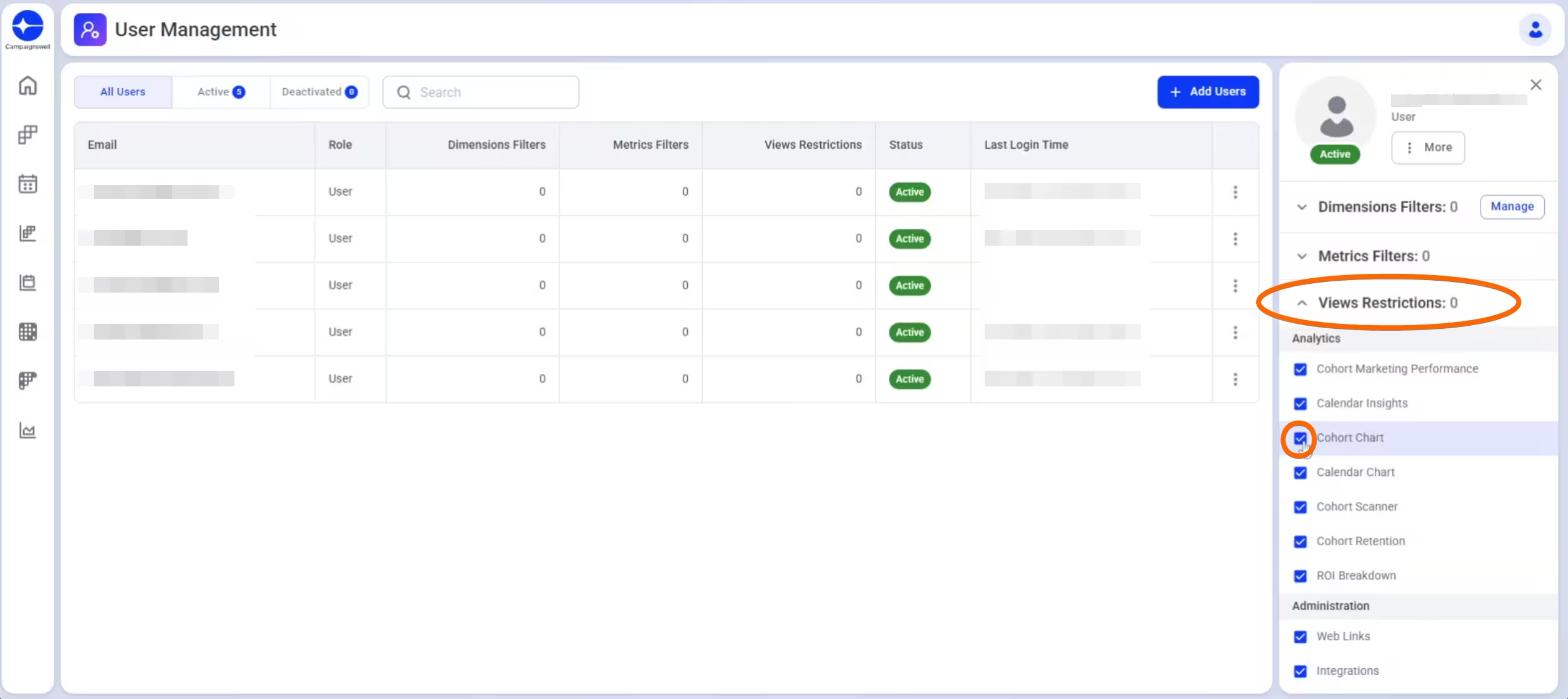
4. Click on Views Restrictions to limit access to specific reports/charts
5. Confirm selections by checking the appropriate boxes
Note: By default, new users have access to all data. Use these restrictions to create customized views for team members who only need specific data sets.