
/
Attribution
/
Web
/
Firebase
How to Integrate Campaignswell with Firebase
Firebase integration uses a 3-step chain:
Firebase → Google Analytics 4 → BigQuery → Campaignswell
Important: You need to complete setup in both Firebase AND Google Analytics.
Prerequisites
- Active Firebase project with app(s) configured
- Google Cloud Platform account with billing enabled
- Admin access to Firebase Console, Google Analytics and Google Cloud
Step 1: Enable BigQuery API in Google Cloud (Step 2 from this guide)
- Open Google Cloud Console (console.cloud.google.com)
- Select your Firebase project from the project dropdown
- In the search bar, search for "BigQuery API"
- Verify status shows "Enabled"
- If not enabled, click Enable button
Step 2: Link Firebase to BigQuery
2.1 Open Firebase Console
- Go to Firebase Console (console.firebase.google.com)
- Select your project
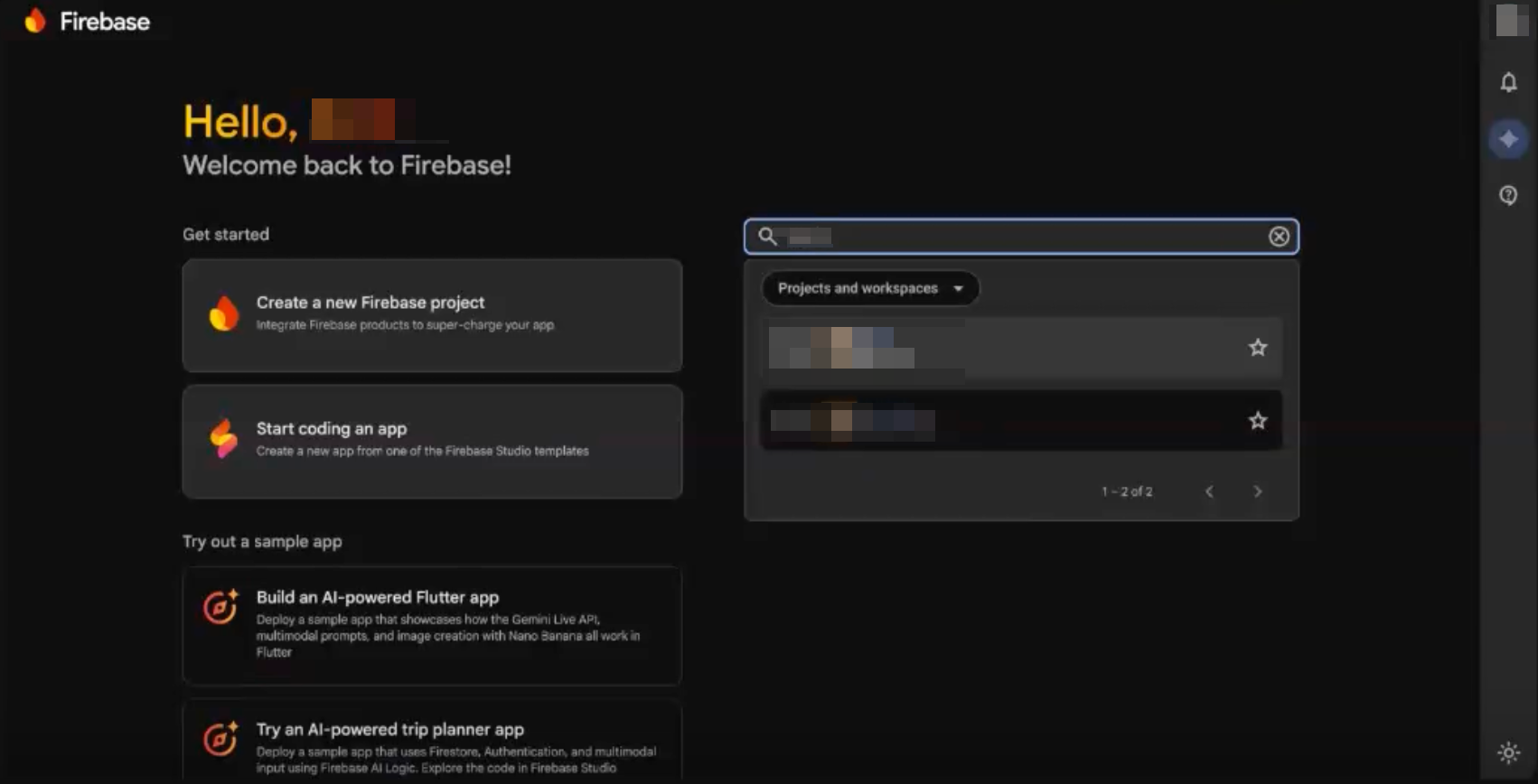
2.2 Navigate to Integrations
- Click ⚙️ Project Settings (left sidebar)
- Go to Integrations tab
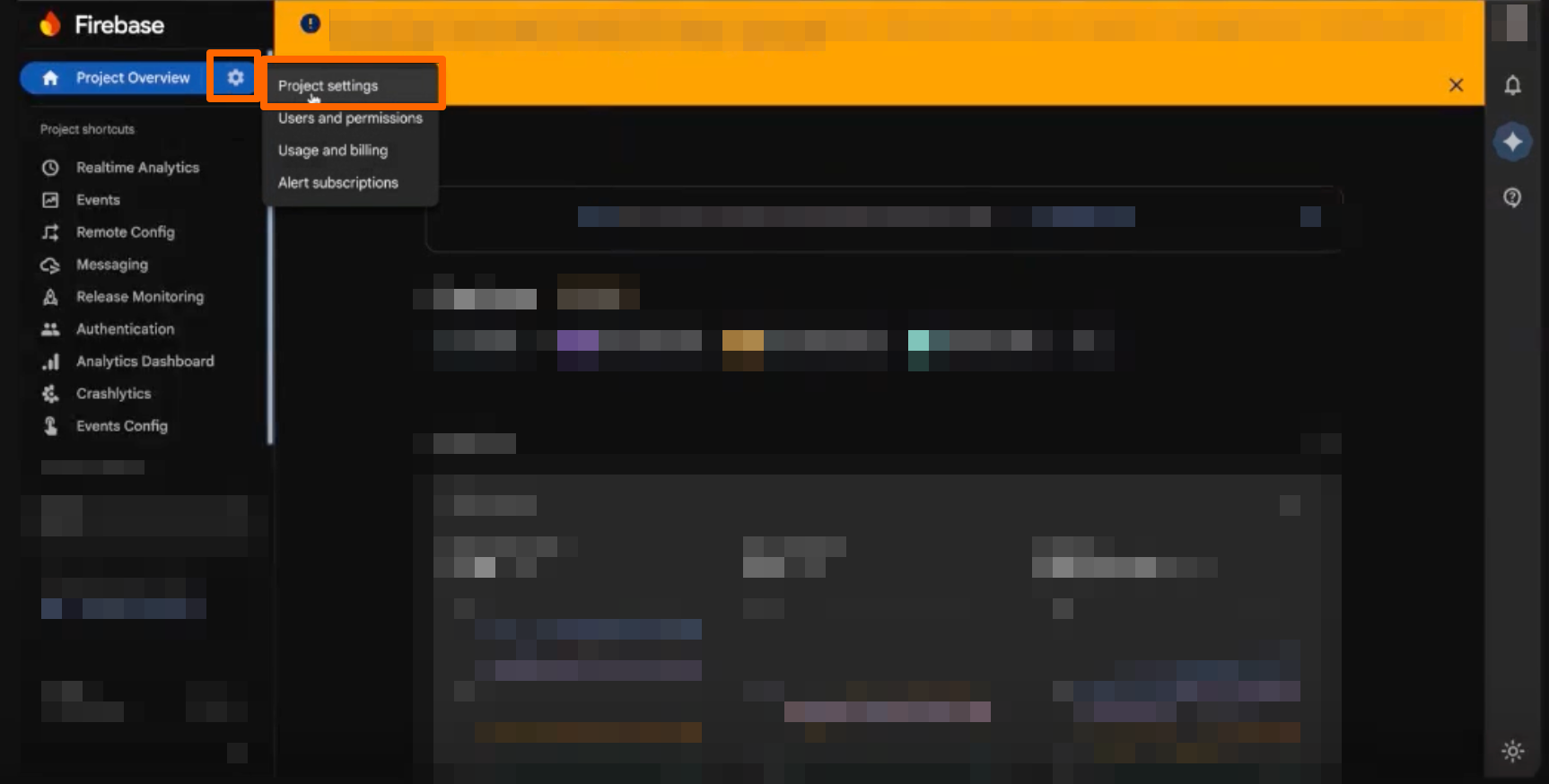
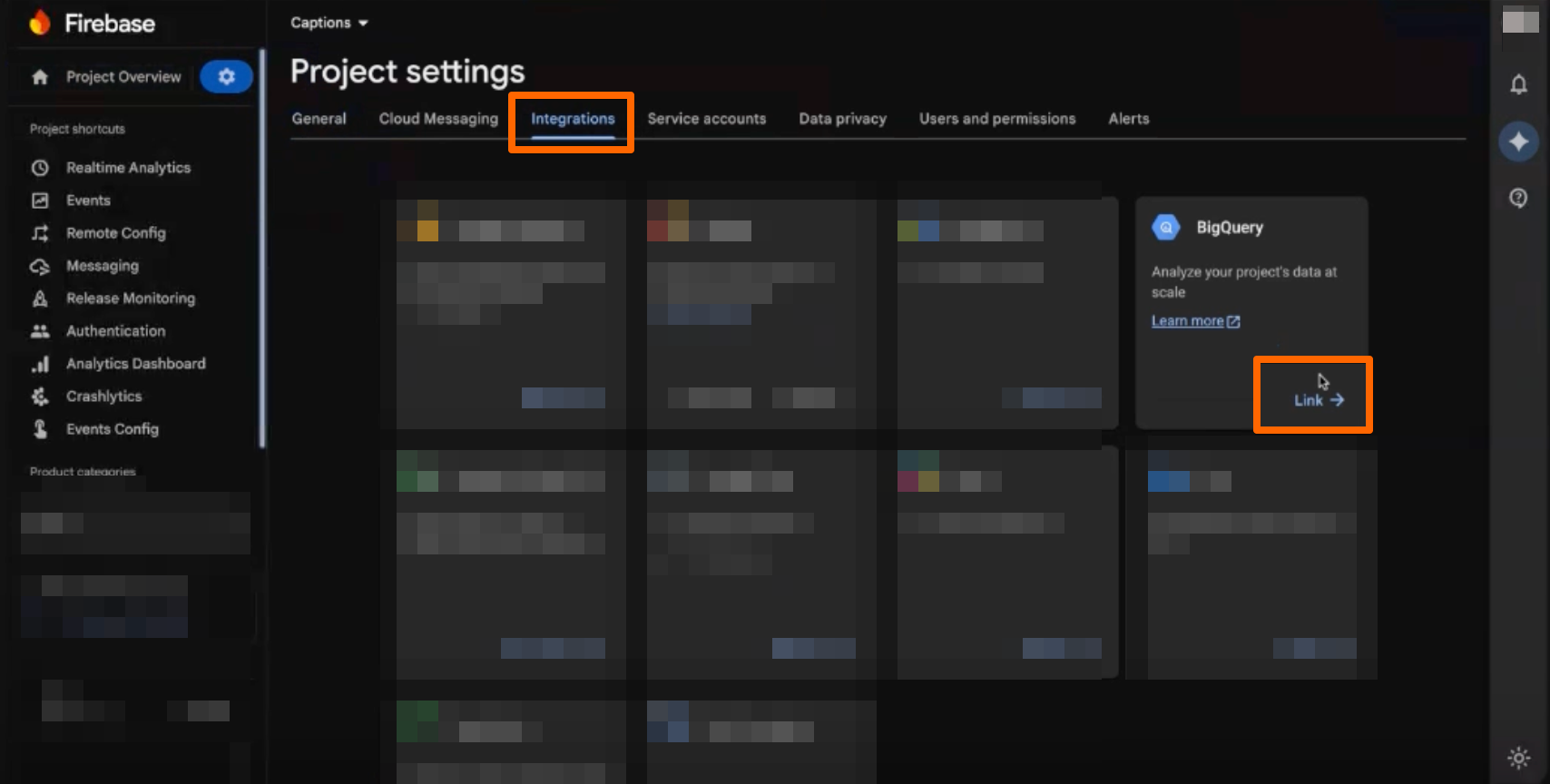
2.3 Link to BigQuery
- Find BigQuery card
- Click to configure the integration
- Configure export settings:
- Choose your product
- Choose your product
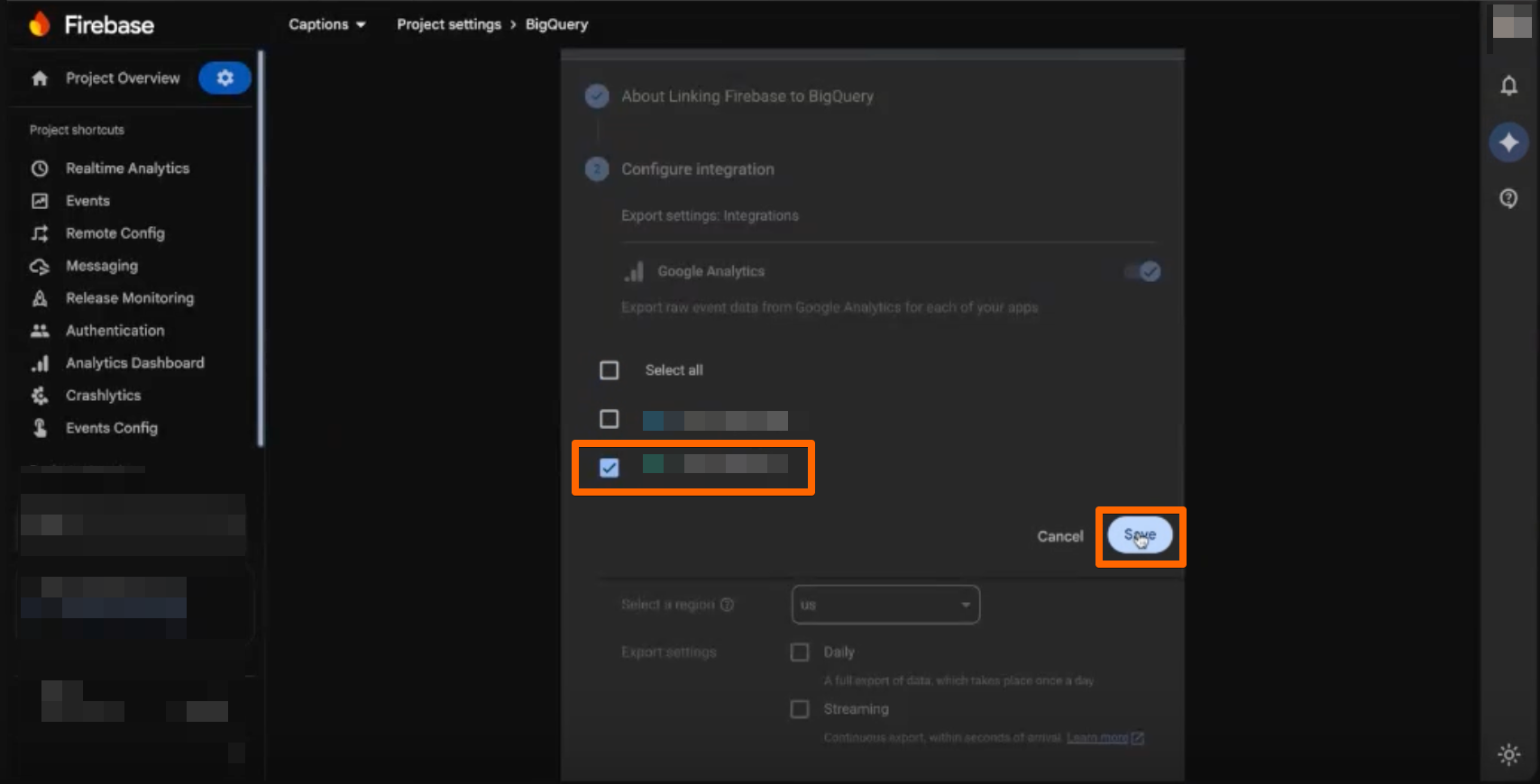
- ✅ Export frequency: Daily
- ✅ Enable Streaming
- ✅ Enable Include Advertising Identifier
- Click Link to confirm
⚠️The step above links Firebase to Google Analytics. Now you need to complete the connection in Google Analytics Admin.
Step 3: Link Google Analytics to BigQuery
- Go to Google Analytics (analytics.google.com)
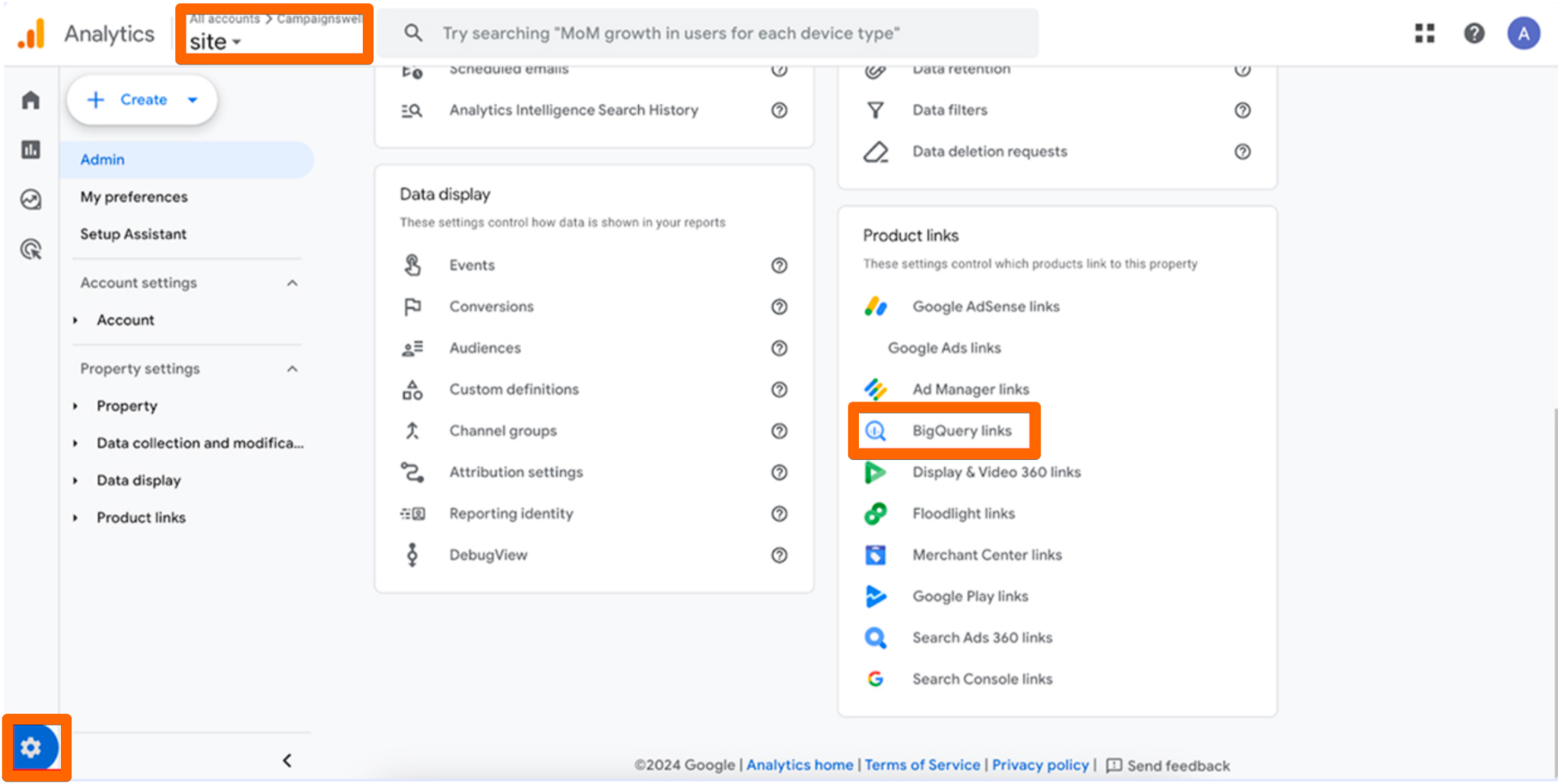
- Click Admin (⚙️ gear icon, bottom left)
- In Property column → BigQuery Links
- Click Link button
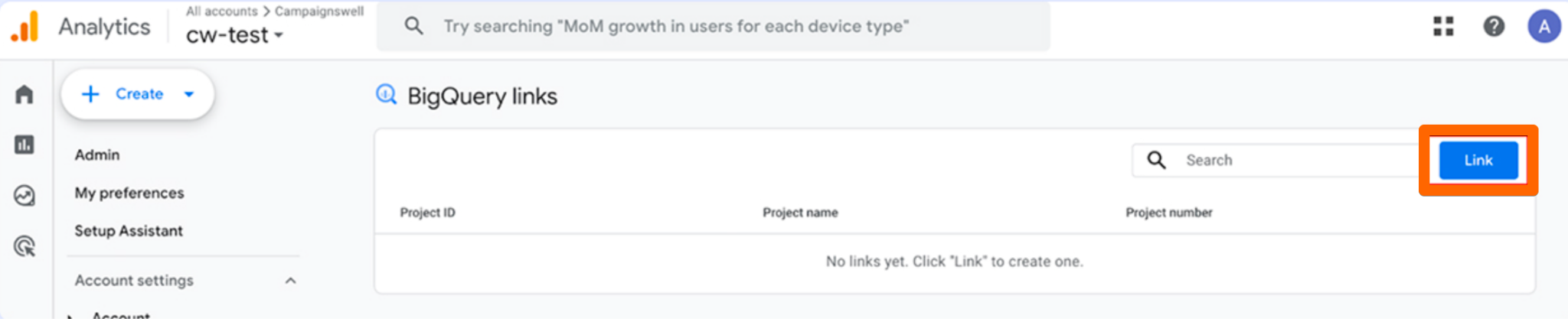
- Select your Google Cloud project (same as Firebase)
- Choose data location (US, EU, etc.)
- Confirm export settings (Daily + Streaming) (follow the Step 3 instructions here)
- Click Next → Submit
This completes the full chain: Firebase → Google Analytics → BigQuery
Step 4: Invite Campaignswell team to Google Cloud Project
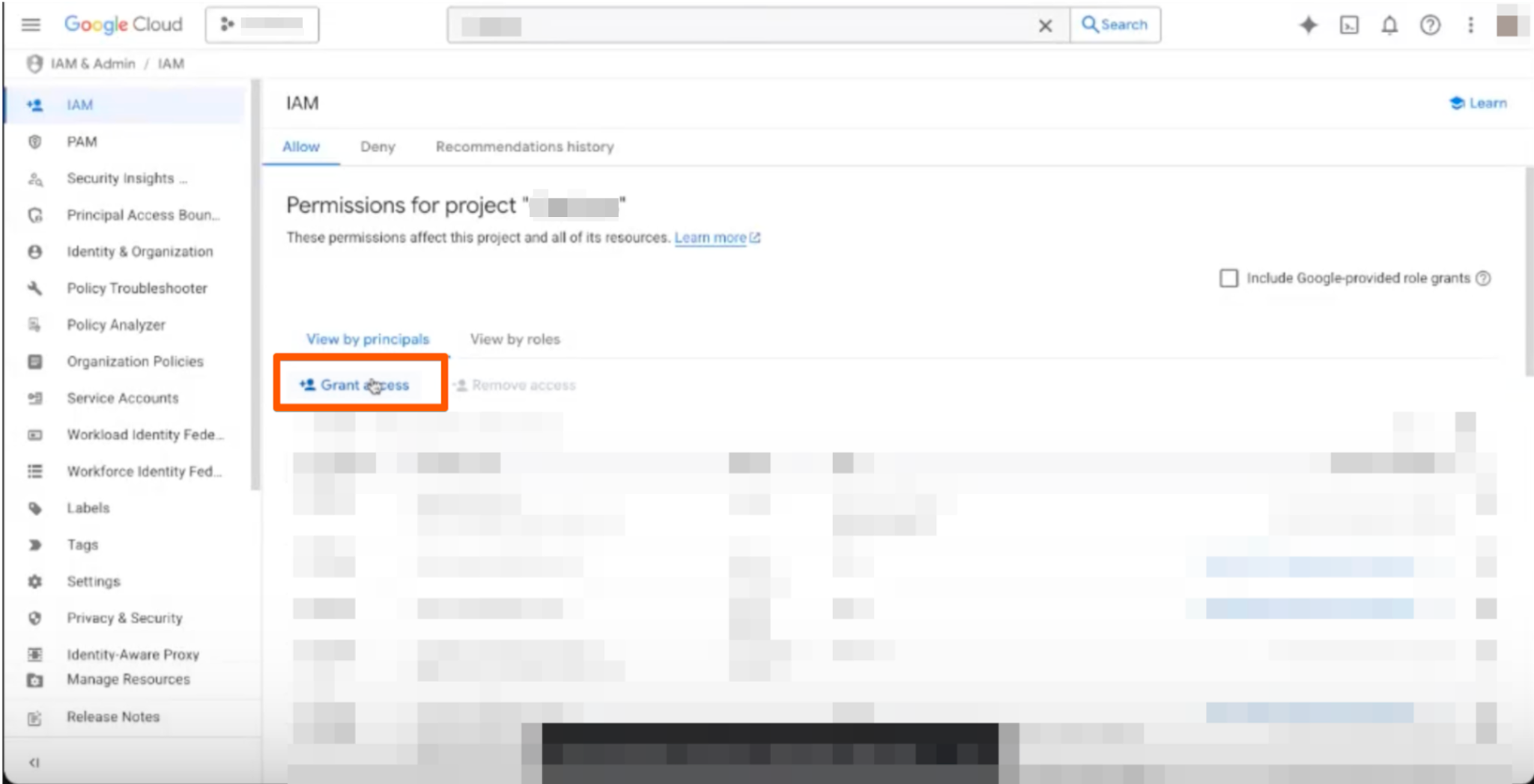
4.1 Navigate to IAM & Admin
- In Google Cloud Console, go to IAM & Admin (left sidebar menu)
- Or search for "IAM" in the search bar
4.2 Share Access
- Click + Grant Access button
- Email: aliaksei@campaignswell.com
- Role: Owner
- OR:
- editor
- iam.securityAdmin
- bigquery.admin
- storage.objectAdmin
- iam.roles.create
- OR:
- Click Save
Step 5: Verify
- ✅ BigQuery API is enabled
- ✅ Firebase linked to BigQuery (Daily export + Streaming + Advertising ID)
- ✅ Campaignswell team invited to Google Cloud project with Owner role or alternative roles (see above)
What Happens Next
- Campaignswell technical team completes backend setup
- Data validation with your Firebase Analytics data
- Firebase attribution data appears in Campaignswell dashboard
Troubleshooting
Issue: Can't find IAM & Admin in Google Cloud
- Solution: Use search bar at top of console, type "IAM"
Issue: BigQuery API not showing as enabled
- Solution: Make sure you're in the correct Google Cloud project (same project linked to Firebase)
Issue: Can't link Firebase to BigQuery
- Solution: Verify billing is enabled in Google Cloud Platform for this project
Questions? Contact your Campaignswell CSM.