
Connecting Truegate to Campaignswell
Payment and Subscription webhooks setup guide
Campaignswell receives your Truegate payment and subscription events through webhooks. You will create two webhooks in Truegate (Payment and Subscription) that send events to Campaignswell, then connect the Truegate account in Campaignswell using your Project ID and Secret Key. The whole setup takes about 10 minutes.
You will need: admin access to your Truegate dashboard, access to your Campaignswell workspace, and the Secret Key provided by your Truegate CSM. If you have not received it, request it from your Truegate CSM before you start.
Step 1. Copy the webhook URL from Campaignswell
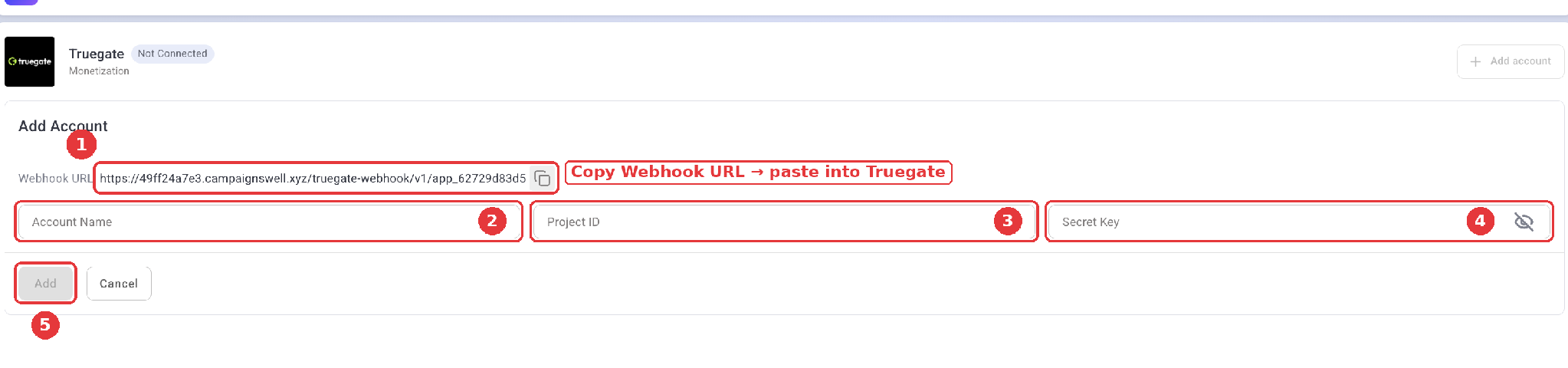
In Campaignswell, open the integrations list, find Truegate (Monetization) and click Add account. Copy the Webhook URL with the copy icon (1). Keep this tab open: you will come back to fill in fields 2–4 in step 6.
Step 2. Open Webhooks in Truegate
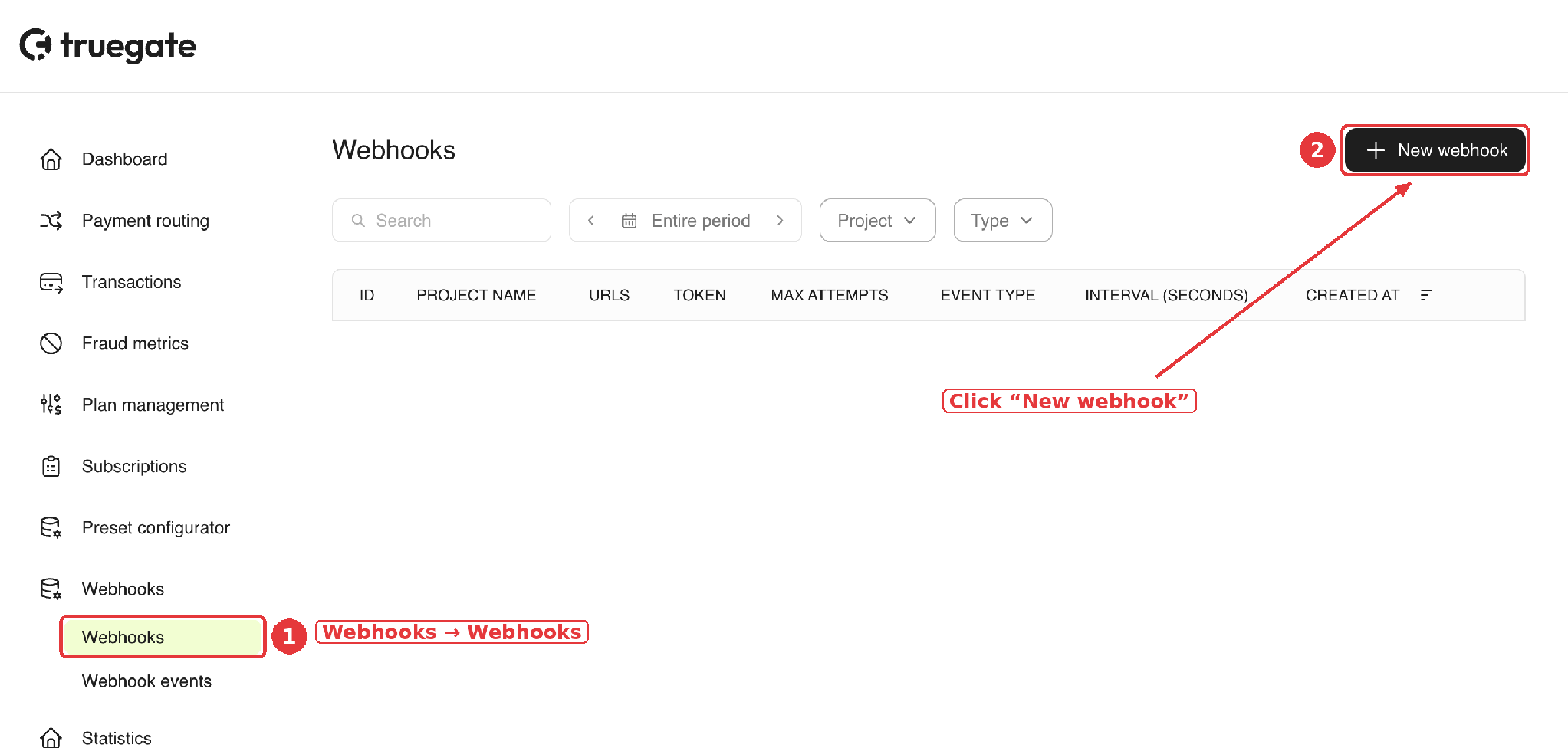
In the Truegate dashboard, go to Webhooks → Webhooks in the left menu (1) and click New webhook in the top right corner (2).
Step 3. Create the Payment webhook
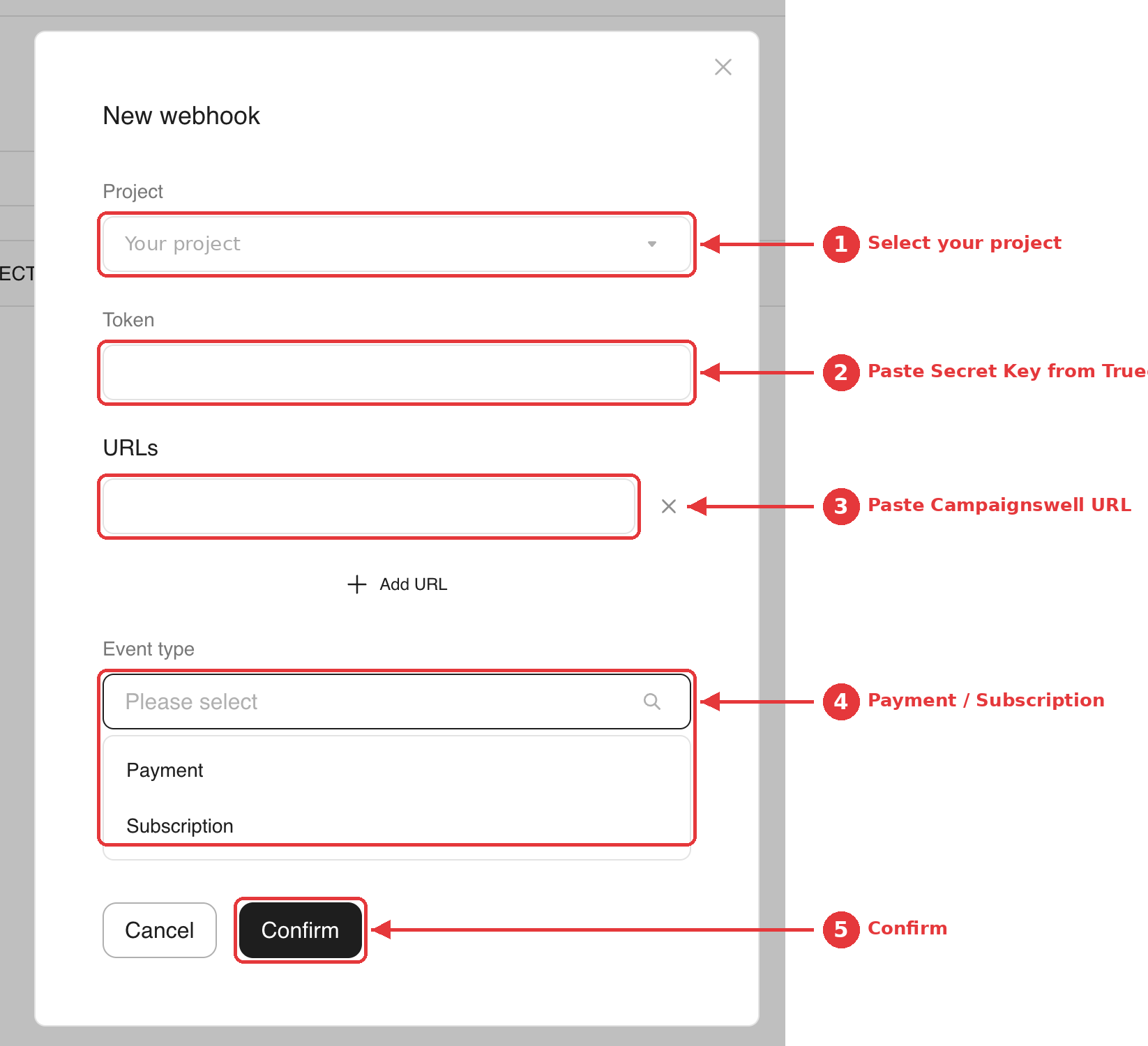
Fill in the New webhook form:
- Project – select the project whose data you want to send to Campaignswell.
- Token – paste the Secret Key provided to you by your Truegate CSM. You will enter the same value in Campaignswell in step 6.
- URLs – paste the Campaignswell Webhook URL from step 1.
- Event type – select Payment.
- Click Confirm.
Step 4. Create the Subscription webhook
Click New webhook again and repeat step 3 with the same Project, the same Token and the same URL, but select Subscription as the event type. Click Confirm.
Check: the Webhooks list should now show two rows for your project – one with event type Payment and one with Subscription, both pointing to the Campaignswell URL.
Step 5. Find your Project ID
The Project ID is the identifier of the Truegate project you selected in step 3 (not the webhook ID shown in the first column of the Webhooks list). You can find it in your project settings in the Truegate dashboard. If you cannot find it, ask your Truegate account manager for the Project ID of this project.
Step 6. Finish the connection in Campaignswell
Go back to the Add Account form in Campaignswell (screenshot in step 1) and fill in:
- Account Name (2) – any name that helps you recognise the account, e.g. the project name.
- Project ID (3) – the value from step 5.
- Secret Key (4) – the Secret Key provided by your Truegate CSM (the same value you entered as the Token in step 3).
- Click Add (5). The Truegate status should change from Not Connected to Connected.