
How to integrate FunnelFox Billing with Campaignswell
Before you start Please ask your CSM at FunnelFox to enable the FF Billing account for you. They will send you links to create Production and Sandbox accounts in the Support Tool - please share those links with Campaignswell.
Step 1. Configure FunnelFox Support Tool (Production)
Open your FunnelFox Support Tool for the relevant product and go to Settings.

⚠️ Note: if you have multiple products, invoice accounts must be separate and configured individually in each Support Tool.
Apply the following settings:
Webhook:
- Find the field
webhook2.urland paste the Webhook URL from Campaignswell (generated in Step 2)
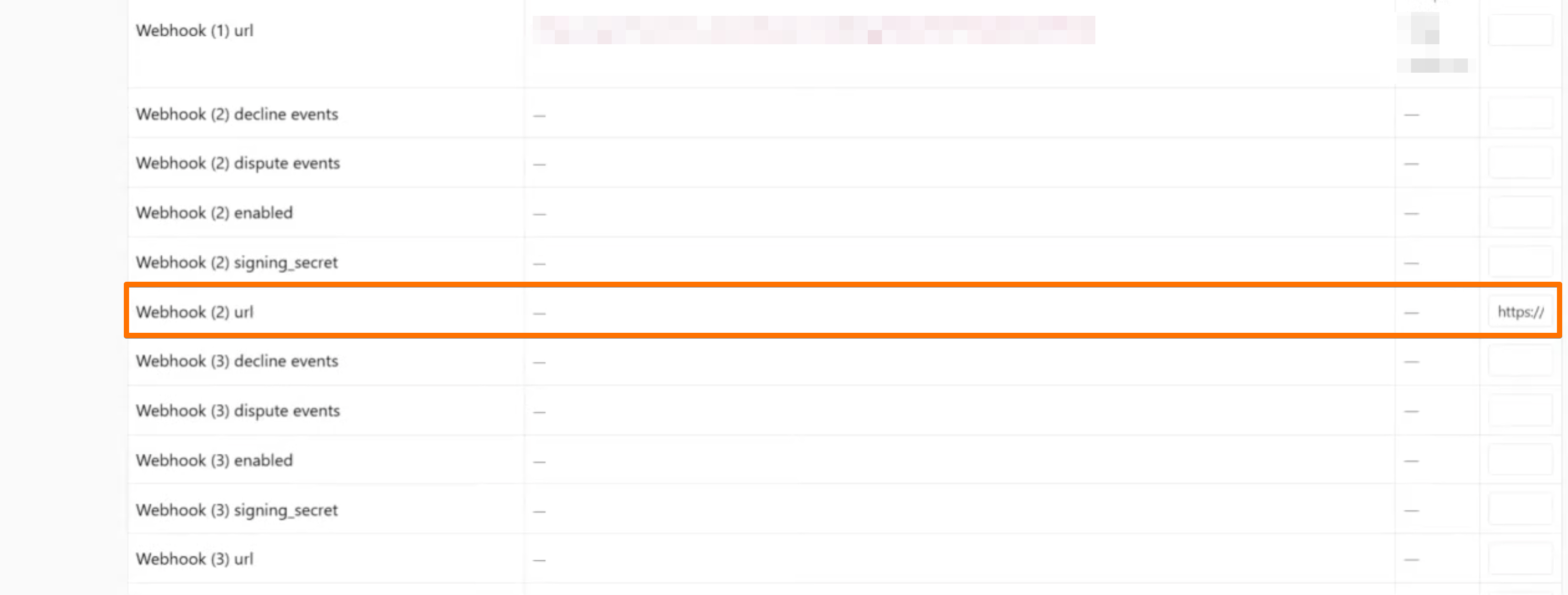
API Secrets:
FunnelFox API Secrets New First Enabled→ set totrueFunnelFox API Secrets New First Group→ set tosupportFunnelFox API Secrets New First Key→ enter a random string manually — this will be your Secret Key

⚠️ Important: once you click Submit, the key will no longer be visible in the UI. Copy and store it securely before saving.
Click Submit to save all changes.
Step 2. Get your Organization ID
Your Organization ID can be found in the URL of your FunnelFox Support Tool (Production). It starts with live_ — copy the full value including the prefix.
Step 3. Configure the integration in Campaignswell
Go to Integrations → FunnelFox Billing and fill in the following fields:
- Account Name — any name you prefer, e.g. your app or product name
- Organization ID — the value starting with
live_from Step 2 - Secret Key — the key you created in Step 1
Copy the Webhook URL that appears after saving and paste it into webhook2.url in your FunnelFox Support Tool (Step 1).
Step 4. Confirm with Campaignswell
Once the setup is complete, let us know. We'll verify the configuration on our side and confirm everything is working correctly.
How to Connect FunnelFox Billing to display RDR alerts in Campaignswell
Prerequisite: FunnelFox Billing must already be integrated with Campaignswell (see above). The webhook URL configured during that setup - the one currently set in your FunnelFox Support Tool as webhook2.url - is the same URL we'll reuse here.
Step 1. Open FunnelFox Billing Webhook Settings
Log in to your FunnelFox Billing admin panel (Support Tool) and open the Webhooks settings page.
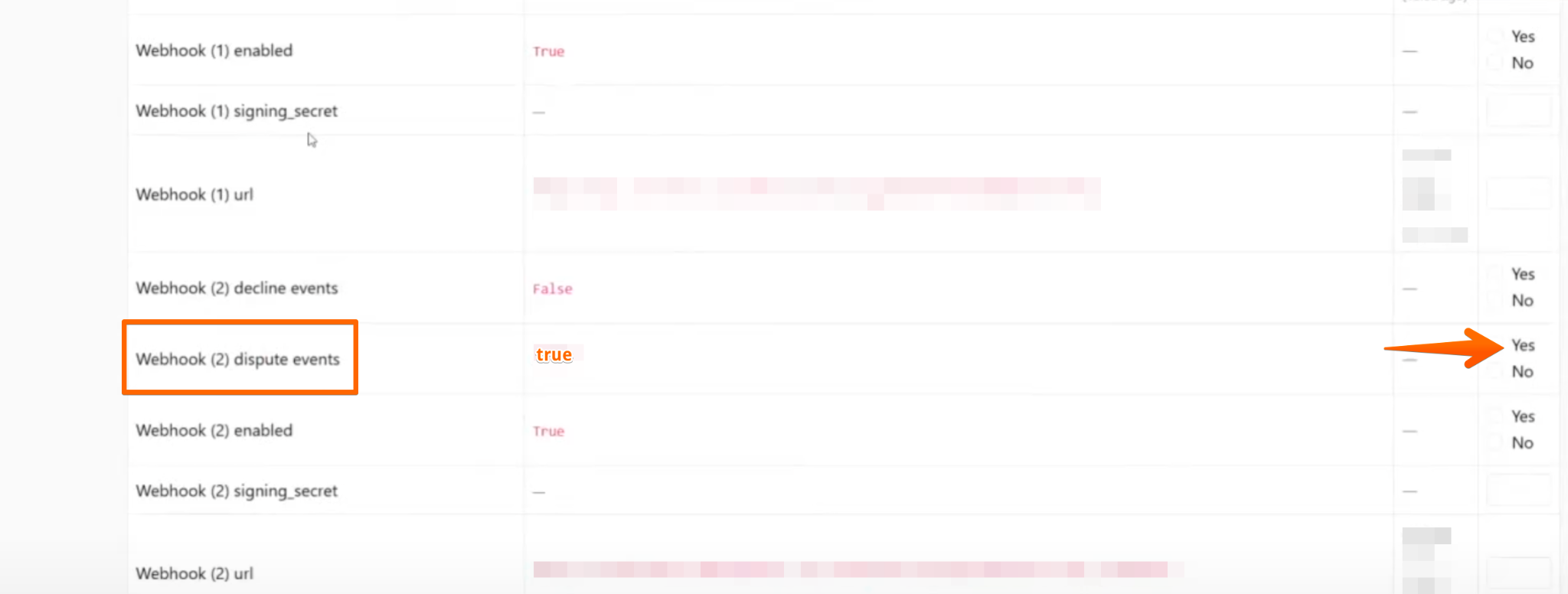
Step 2. Enable Dispute Events
Find Webhook (2) dispute events and set the New Value to Yes. Save the change.
Step 3. Forward Merchanto Alerts to Campaignswell
Find the field "(optional) URL to forward incoming Merchanto alert webhooks (create_event / update_event) to an external endpoint" and paste the same Campaignswell webhook URL that is already configured in your webhook2.url. Save the change.
.png)
Note: RDR alerts in FunnelFox Billing originate from Merchanto. FunnelFox Billing acts as an orchestrator - it receives the alert webhooks from Merchanto and forwards them to Campaignswell.
Step 4. Notify Campaignswell Team
Let us know once both settings are saved. We'll verify the data on our side and confirm everything is working correctly.
Viewing FunnelFox Billing Data in Campaignswell
Once the integration is complete, you can view alert data in your reports:
Available metrics:
- RDR alerts — number of RDR alerts received (available in Calendar Insights)
- RDR alert fee — fees associated with RDR alerts